
Review Text Blaze: Optimize your day to day
Summary (TL;DR)
In this blogpost, you will find detailed information about Text Blaze, a free tool that automates repetitive typing tasks to increase efficiency and productivity at work.
We will explore how the extension works, its main benefits, such as time saving and team collaboration, and integrations with external services.
We also provide a simple step by step to install and use Text Blaze in Chrome browser, highlighting how this solution can transform your day by day when sending repetitive messages quickly and conveniently.

More and more we can rely on tools to make our work more efficient and productive and the Text Blaze It's one of those options. That's why we decided to prepare this review Text Blaze.
If you're looking for a tool to automate text you type every day, Text Blaze is one of the best known options and has free plan. In this review you see how it works, how much it costs in October 2026, for whom it is worth and what the alternatives are.
People who use e-mails at work often send the same short messages.
They are answers to colleagues, customers and suppliers that change little from time to time.
Stop and think: how often do you copy and paste the same text for several people?
Text Blaze is a company that provides a solution that makes the task of sending messages much faster, more productive and convenient with its message shortcut tool (snippet).
Text shortcuts make more difference when contacts arrive organized: if your site leads enter a funnel, see how to use CRM for site lead management.
How Text Blaze works
Text Blaze works as an extension to Chrome and other Chromium-based browsers (Edge, Brave, Opera) and also as an application for Windows and macOS, according to the official website. He's got a free plan and paid plans.
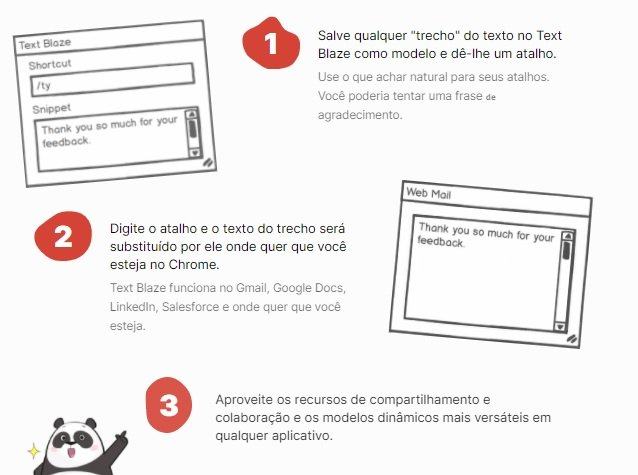
With Text Blaze you can save any small text (or template) so you can use it when you need it. After doing this, just create the shortcut you prefer and use the texts in Google Docs, Gmail, LinkedIn and so on.
In addition to the snippets, today the company offers two products linked to it: AI Blaze, to write and review texts with artificial intelligence, and the Date Blaze, with tables whose data can be used and updated within the snippets.
You can, for example, save something like: “Hello! All right? Please, to continue the registration procedure, I need you to send the following information...”
If you have some type of text that you often send, then it can be saved in Text Blaze to save a lot of your time. But saving the texts and inserting them quickly where you need it in your browser is not just what makes Text Blaze stand out.
The extension also has integrations with external services to ensure that your service saves users time. For example, the solution can extract CRM data from Hubspot (software for marketing, sales and customer service) in a text snippet used in Gmail. If you answer customers for WhatsApp, see also how a chatbot works in WhatsApp.
This is done in order to link different services and data sources automatically, which helps users save minutes of their days and hours of their weeks.
Benefits of Text Blaze
Definitely the main benefit in using Text Blaze is the time savings it provides. However, it also helps in collaboration between teams and the supervision of communications through shared texts, comments, usage statistics and more.
Text Blaze is a great option for people who spend the day writing and texting. Some of them are:
- Customer success representatives;
- Recruiters;
- Salesmen;
- Operations managers;
- Marketing professionals and more.
The question here is: if you send certain types of text every day, you can use Text Blaze to make your day much more productive.
How much does Text Blaze cost?
Text Blaze has a free plan and three paid plans. In October 2026, the official plan page showed the figures below, in dollar:
- Free: US$ 0, with limited number of snippets and sharing;
- Pro: US$ 2.99 per month in the annual plan or US$ 3.49 per month, with full forms, images and tables in the snippets and conditional rules (if/then);
- Business: $6.99 per user per month in the annual plan or $8.39 in the monthly, with unlimited sharing, user management and team usage reports;
- Enterprise: price on request, with single login (SSO SAML), audit logs and priority support.
As the charge is in dollar, the value in real changes with the exchange rate and with the IOF of the card. Check out the page before signing, because prices and limits change.
How to install and use Text Blaze
The installation and use of Text Blaze are made in very simple ways. Here's a step by step to help you do this:
- Click here to access the Text Blaze page in the Chrome Web Store and then click “Use on Chrome”;
- When the extension is installed, save any text snippets in Text Blaze as a template and create a shortcut. You can choose the shortcut you prefer, for example, you can put “obg” for a thank-you text;
- When you need to use the text, just type in the shortcut and snippet will appear wherever you are using Chrome.
- You can also take advantage of the sharing and collaboration features and dynamic models that are most versatile.
How to use snippets to respond contacts coming through the site?
Who receives messages by form, email or online chat site usually answer the same questions several times: price, time frame, service hours, necessary documents. In Text Blaze, each response can turn a snippet with fields to the client's name and data that changes from one service to another. Thus, the answer comes out faster and in the same pattern, whatever the attendant is.
If the same questions appear frequently, it is worth answering them also on the site itself, for example on a FAQ page. See how the site structure facilitates the service.
What are the alternatives to Text Blaze?
Tools that expand shortcuts in text (the so-called text expanders) have existed for a long time. The most cited alternatives are:
- TextExpander: tool with paid plans, focused on teams, with applications for Mac, Windows, Chrome, iPhone and iPad;
- Spanso: free and open source text expander, installed on the computer, indicated for those who do not bother to configure shortcuts in text files;
- native resources: Gmail has email templates and WhatsApp Business has quick answers that solve simple cases without installing anything.
Text Blaze differs by free plan, direct operation in Chrome and snippets with forms and rules, useful for those who need to fill out different data with each message.
Is Text Blaze worth using?
It is valid for those who type the same texts every day, such as attendance, sales and recruitment. The free plan is enough to test with the most used answers before deciding on a paid plan.
The tool works on most websites. If any do not accept the shortcuts, Text Blaze advises contacting support.
Answer quick help, but most of the repeated questions can be resolved before, on the site itself. If your site does not leave clear price, deadline and contact forms, Get a quote WebSyd.
FREQUENTLY ASKED QUESTIONS
What is Text Blaze?
Text Blaze is a tool that automates repetitive texts. You save templates (snippets) and insert them with shortcuts. It works as an extension to Chrome and Chromium-based browsers and as an application for Windows and macOS, with free plan and paid plans.
What are the main benefits of using Text Blaze?
Time saving in repetitive texts, standardization of team responses with shared snippets and integration with other services by the API, such as HubSpot CRM (read and update contacts and businesses), according to the official guide of the Text Blaze.
How does Text Blaze work?
Text Blaze works as a browser extension or application for Windows and macOS. After installing the extension, you can save any text snippet as a template and create a custom shortcut for it. When you need to use the text, just type in the shortcut and snippet will automatically appear where you are typing, such as on Google Docs, Gmail or LinkedIn.
How can I install and use Text Blaze?
To install and use Text Blaze, follow these steps:
Access the Text Blaze page in the Chrome Web Store and click “Use on Chrome”.
After installation, save any text snippets in Text Blaze as a template and create a shortcut.
Use the shortcut you typed to insert the snippet where you need it, directly into the Chrome browser.
Take advantage of the additional sharing and collaboration features, and the dynamic models that the extension offers.
How much does Text Blaze cost?
In October 2026, Text Blaze had a free plan, Pro for $2.99 per month in the annual ($3.49 in the monthly), Business for $6.99 per user per month in the annual ($8.39 in the monthly) and Enterprise under consultation, according to the official plans page.
What are the alternatives to Text Blaze?
The most cited are TextExpander, with paid and team-oriented plans, and Espanso, free and open source. For simple cases, Gmail templates and WhatsApp Business quick responses also solve.

Lucas Pelisari has specialised in SEO and content at WebSyd for more than 6 years, working on the creation and optimisation of digital strategies focused on lead generation and organic growth. With experience in website development projects, SEO on-page and link building, he works directly on structuring content and pages aimed at positioning on Google and acquiring qualified traffic. Throughout his work, he has participated in projects for companies such as Kommo, Aldanth, Physical Care, In4, Design.com, Adaptive, Clipto and Yesim, as well as several other clients attended by WebSyd. Its contents address topics such as creating professional sites, SEO, page structure, performance, user experience and digital growth strategies, always with a practical approach based on real market scenarios.
View all posts


 Estimate the cost